

A visitor clicks your site, waits a few seconds, then leaves. That tiny pause can cost you trust, search traffic, and sales before your offer even has a chance.
If you’re building a business, a blog, or a passive income stream, a slow website can feel like a leak in the bucket. You keep pouring time into content and offers, but the site keeps pushing people away. The good news is that speed fixes do not have to turn into a giant tech project.
Start by testing your site speed now, then test again after each change. That way, you can see what helps and skip the guesswork. Small speed gains add up fast, especially when they happen on every page.
Start with the fixes that make the biggest difference first
These first steps matter because they touch the whole site. Hosting, theme weight, and image size affect every page load, every visitor, and every device.
Step 1, move to faster hosting if your server is the bottleneck
Cheap shared hosting is often the hidden reason a WordPress site feels sluggish. You can have decent plugins and well-sized images, and the site still drags because the server is overloaded.
Common signs show up early. Your dashboard takes forever to open. Pages feel randomly slow, even when you did not change anything. Traffic spikes make the whole site wobble. When that happens, the problem may not be WordPress at all.
A better host gives you breathing room. Managed WordPress hosting is often the easiest next step because it handles server tuning, backups, and support. A quality VPS can also work well if you want more control. If you want a simple starting point, this guide to affordable high-speed WordPress hosting is a helpful place to compare the basics. You can also scan tested options in this roundup of best WordPress hosting for 2026. I recommend WPX wordpress hosting (please use my affiliate link https://wpx.net/?affid=10005)
Step 2, switch to a lightweight theme that does not add extra bloat
Some themes look beautiful in a demo and feel heavy in real life. They load animations, sliders, icon packs, template libraries, and page builder features you may never use. Your browser still has to download all of it.
A lightweight theme gives you a cleaner starting point. Pages load faster because there is less code to process. Your site also becomes easier to maintain later, which matters when you’re juggling content, offers, and life.
Before you switch, check the theme demo on mobile. Notice how fast it loads. Read a few reviews that mention speed, not only design. Also be honest about features. If you do not need fancy effects, skip them. Clean design often converts better anyway because visitors can focus on the message instead of waiting for the page to catch up. I recommend Kadence theme.
Step 3, compress and resize images before they slow every page down
Images are one of the most common reasons for a slow website. A huge homepage banner or a full-width blog photo can quietly add seconds to load time.
Resizing matters first. If your content area displays images at 1200 pixels wide, uploading a 5000-pixel file wastes space and speed. Compression matters too because it shrinks file size without making the image look bad. Modern formats such as WebP and AVIF usually load faster than older JPG or PNG files.
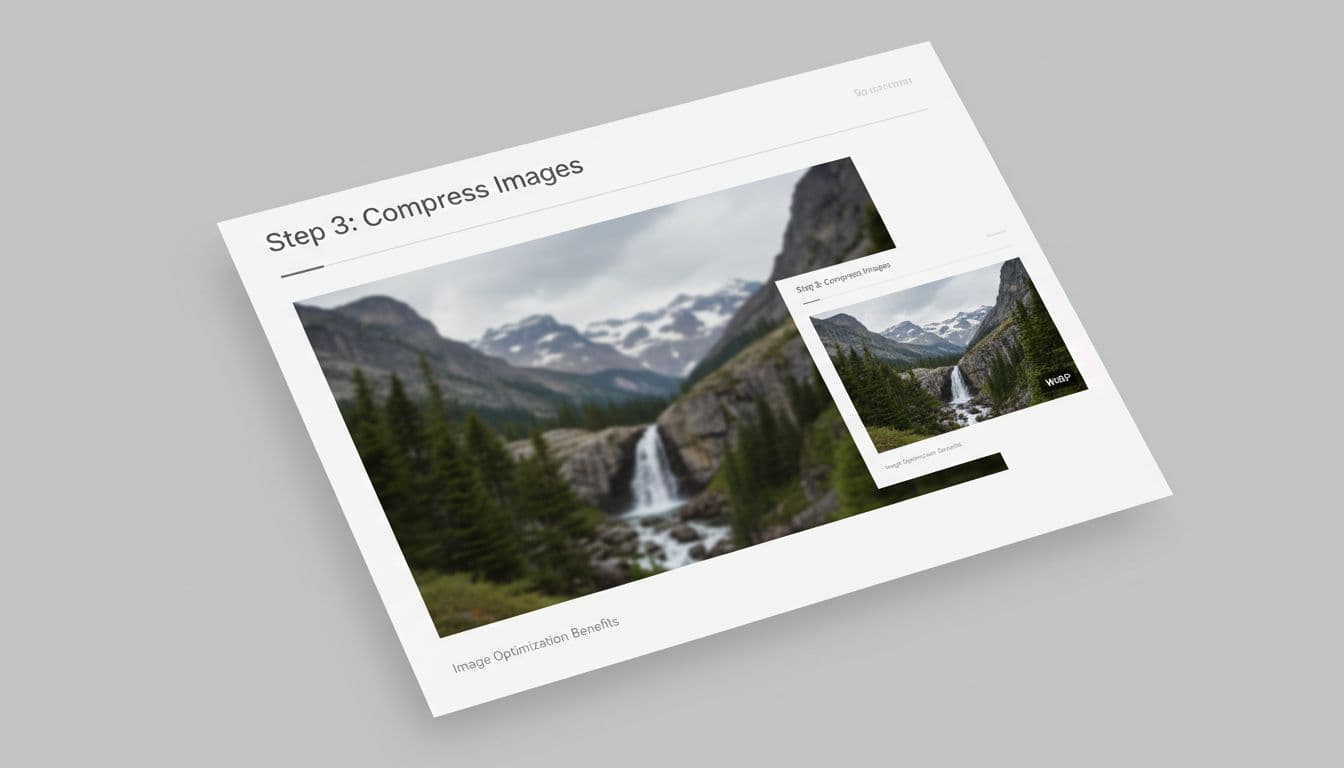
Also turn on lazy loading so below-the-fold images wait until someone scrolls near them. That simple change can make long pages feel much lighter. If you want a current overview of what usually moves the needle, this 2026 WordPress speed guide lines up closely with what site owners are seeing right now.
Use smart tools that help WordPress load pages faster
Once the foundation is better, speed tools can do the repetitive work for you. They reduce how often WordPress rebuilds pages and help browsers load files more efficiently.
Step 4, install caching so pages load faster for repeat and new visitors
Caching saves a ready-to-go version of your page. Without it, WordPress often rebuilds the same page over and over, pulling data, loading plugins, and generating HTML every time someone visits.
That extra work adds up. Page caching cuts much of it. Browser caching helps too because returning visitors do not need to download the same files again. Together, these settings often create one of the quickest visible improvements on a slow website.
You do not need a long plugin comparison to get started. Pick one reliable caching tool that fits your host and setup. Then test your pages after turning it on. If you want ideas, these recommended plugins for faster WordPress can help you narrow the field, and this list of best cache plugins for WordPress gives a current snapshot of popular choices.
Step 5, add a CDN to serve files closer to your visitors
A CDN stores copies of your static files, like images, CSS, and JavaScript, on servers in different places. When someone visits your site, those files can load from a location closer to them.
That matters more than many people realize. If your audience is spread across the US, or even beyond it, distance adds delay. A CDN helps smooth that out, so visitors in California, Texas, Florida, or London are not all waiting on the same single server.

For women building service businesses or passive income sites, this is useful because your traffic may come from Pinterest, Google, email, or social media at all hours. A CDN keeps delivery more even, especially for image-heavy pages and blog posts.
Step 6, minify code and remove unused CSS and JavaScript
Every extra file gives the browser more work. Some code loads on pages where it is not even needed, which is a little like carrying winter coats to the beach.
Minifying removes spaces and extra characters from CSS, JavaScript, and HTML. That sounds tiny, but on busy sites it helps. Removing unused CSS and delaying non-critical JavaScript can help even more because the browser has less to download before it can show the page.
Test carefully after you do this. Aggressive settings can break layouts, sliders, forms, or checkout pages. One safe starting point is Autoptimize on WordPress.org, which handles minifying and related speed settings for many sites. Change one thing, check the front end, then move on. That slower approach often saves time.
Clean up the hidden issues that keep a slow website from improving
These are the maintenance steps. They are less flashy, but they stop WordPress from getting heavier month after month.
Step 7, update WordPress, plugins, and themes to improve speed and stability
Updates are not only about security. They often include bug fixes, cleaner code, and better compatibility. In April 2026, WordPress 6.8 brought 24 performance improvements, so keeping core updated can make a real difference.
Still, update with care. Back up first. Then update WordPress core, your theme, and plugins in a sensible order. Check key pages after each round, especially sales pages, forms, and booking tools. If your site makes money, a five-minute check is worth it.
This step is not glamorous, but it helps your site stay stable. A fast site that breaks is not much help.
Step 8, clean your database so WordPress has less junk to process
Your database stores the working parts of your site. Over time, it collects clutter, kind of like a closet that keeps getting stuffed with old bags and mystery cords.
Common junk includes post revisions, spam comments, expired transients, and leftover data from plugins you no longer use. WordPress can still function with that clutter, but it may feel heavier because there is more to sort through.
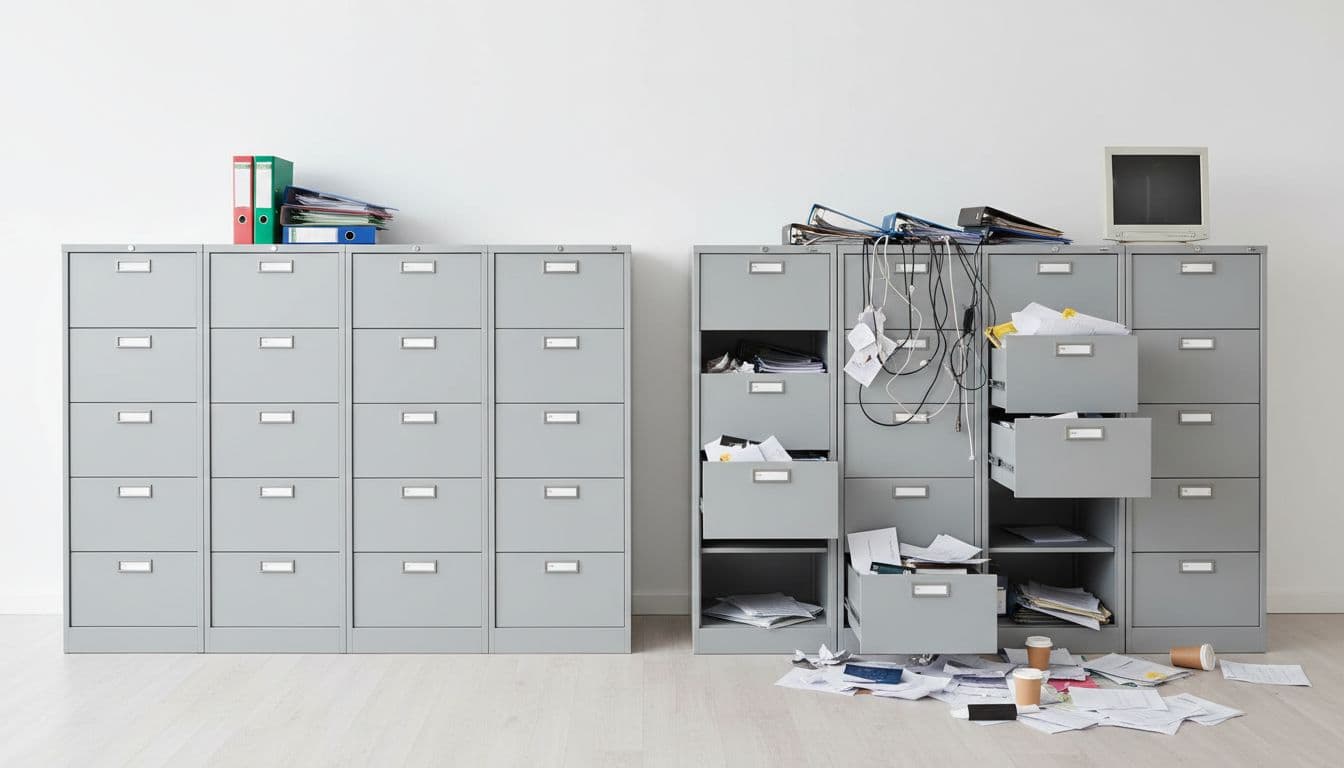
A trusted cleanup plugin or hosting dashboard tool can handle much of this. Back up first, always, then remove the junk you do not need. You are not chasing perfection here. You are clearing out enough noise so the site can move easier.
Step 9, remove plugins, fonts, and third-party scripts you do not really need
Plugins are not the enemy. Bad plugins, overlapping plugins, and too many extras are the issue.
Start with a simple review. If two plugins do nearly the same job, keep one. If a plugin is inactive and you do not need it, delete it. Also look beyond plugins. Extra font families, chat widgets, popup tools, heatmaps, social feeds, and tracking scripts can quietly slow everything down.
This part can feel a little ruthless, but it helps. Keep the tools that support a clear business goal. Cut the ones that only looked nice in the moment. A cleaner site is easier to manage, and it usually feels better to use too.
Finish with one simple change that helps long pages load better
Some pages are slow because they ask the browser to load too much at once. This last fix is a content-level change, and it can help more than people expect.
Step 10, break up very long pages so visitors do not load everything at once
Long blog posts, portfolio pages, and shop pages can get heavy fast. Add images, videos, comments, related posts, and embedded feeds, and the page starts dragging.
You do not need to make the content shorter. You need to load it smarter. Use pagination on blog archives and product grids. Show excerpts instead of full posts on category pages. Trim related posts if they add clutter. On long sales pages, cut decorative sections that do not help someone decide.
This is especially useful when your site grows. What worked fine with 10 posts may feel slow with 200. The page is still doing its job, but now it needs a lighter structure.
A slow site can feel personal, especially when you’ve worked hard on every page. Still, speed problems are usually fixable one step at a time.
Start with the biggest wins, test after each change, and keep going. Most sites do not need a total rebuild. They need a cleaner foundation and a few smart choices.
Quick checklist to save for later
- Move to faster hosting if your server is holding the site back.
- Switch to a lightweight theme with fewer built-in extras.
- Resize, compress, and lazy-load your images.
- Install caching and test the results.
- Add a CDN if visitors come from different places.
- Minify code and remove unused CSS or JavaScript.
- Keep WordPress, plugins, and themes updated.
- Clean your database after backing it up.
- Remove plugins, fonts, and third-party scripts you do not need.
- Break up long pages so they load in a smarter way.
The fastest improvement often comes from fixing the basics first. A slow website usually gets better when you stop adding more and start removing what it does not need.


0 Comments